

Making Reasonable Use of Idle Android Devices
The article introduces repurposing idle Android phones and tablets as proxy routers, web services, Linux virtual machines, and intranet FTP, among other uses, emphasizing low power consumption, quietness, and portability, and provides specific software and configuration ideas.
I have to admit that in recent years, the iteration of electronic products has really been extremely fast. Take mobile phones, for example—every six months there's a new flagship model. Android phones (tablets) are replaced very quickly; often, the latest flagship phone (tablet) you buy this year becomes an old clunker after just one year. So it's predictable that after every phone upgrade cycle, a large number of idle phones will appear. So how should these idle phones be dealt with? You can't bear to throw them away, and if you try to sell them, nobody wants them. Leaving them around to gather dust feels like such a waste.
Actually, for idle phones (tablets), there are still opportunities to put them to some use. Next, I'll talk about a few approaches I've tinkered with myself, just as a record.
1. Circumventing the Great Firewall
Using fqrouter2 to circumvent the Great Firewall
fqrouter2 is a piece of software that can turn a phone into a firewall-circumventing router for other devices to access the internet through.
Using fqrouter2 to circumvent the Great Firewall is very simple—you only need an Android device that has already been rooted. After installation, running it will automatically start the firewall circumvention. As shown in the figure below:
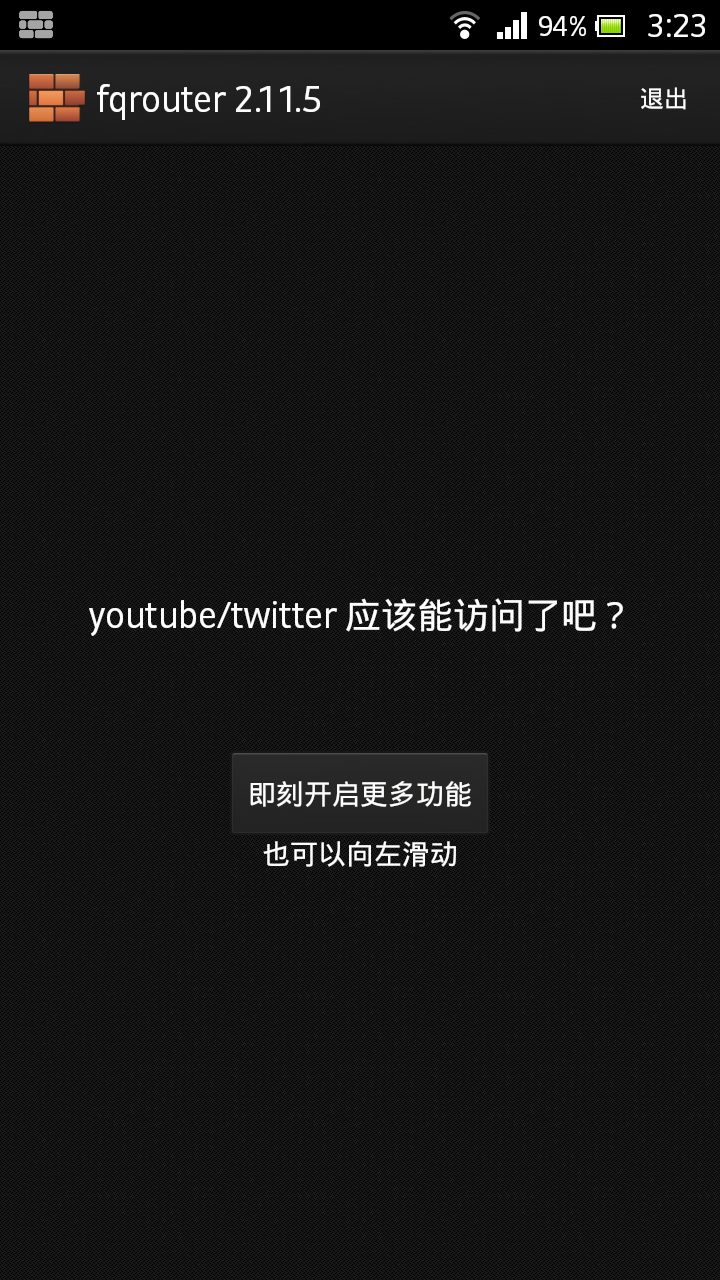
Tap
即刻开启更多功能 to enter the management interface.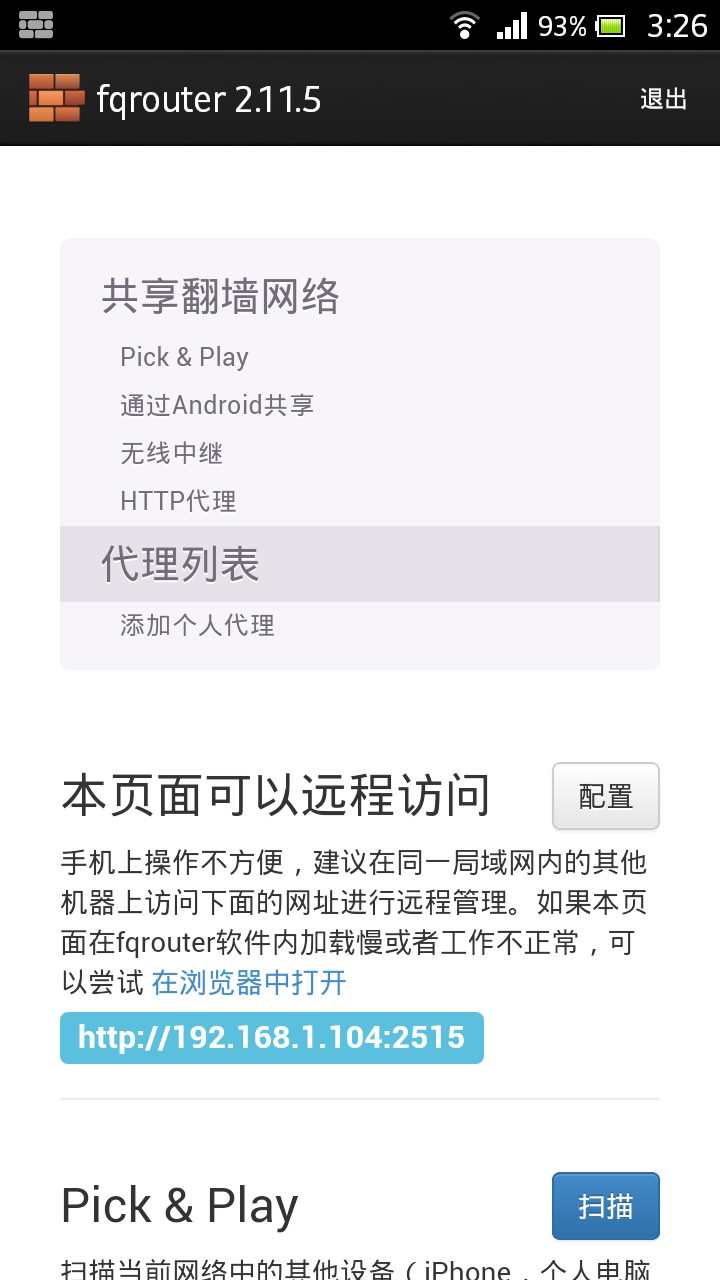
This management page can also be browsed on a computer. The browsing address is the device's IP address plus
2515 the port.Using an Android device as a firewall-circumventing router
On the management page, enable
Pick & Play: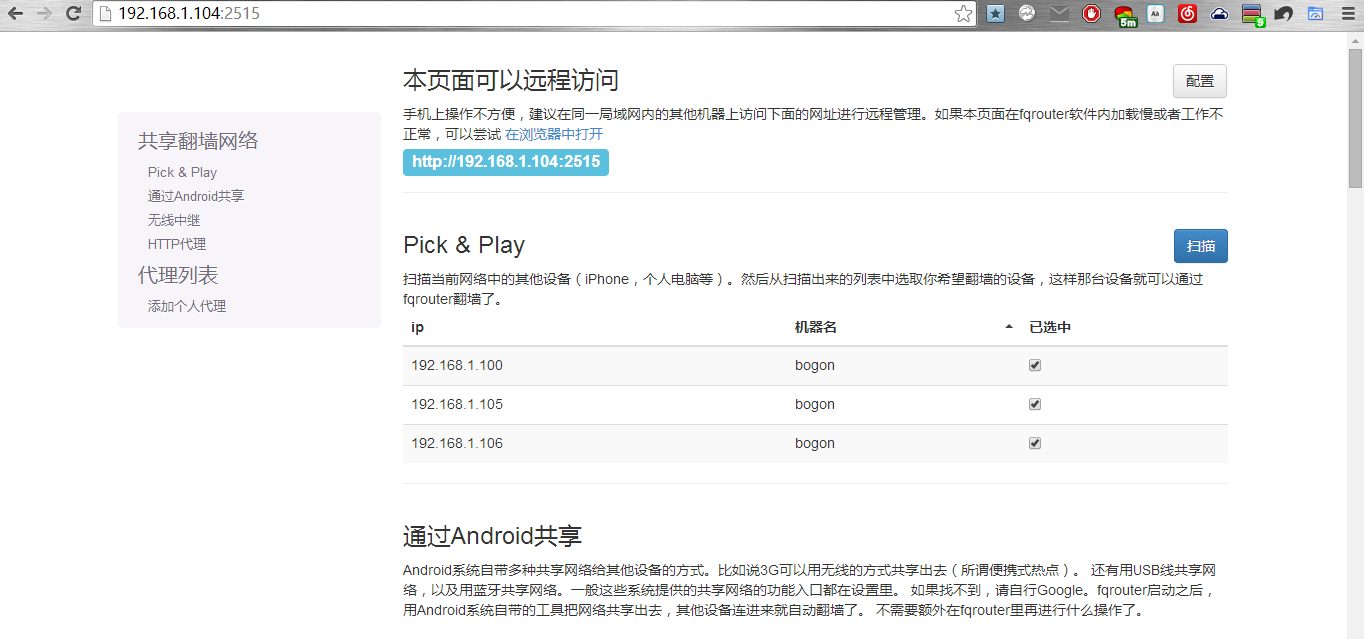
Scan for devices, then select the device you need to proxy. After selecting, refresh the page, then on the device with firewall circumvention enabled, open a webpage that has been blocked, such as Google、Youtube etc. If you can access them, it means the proxy was successful.
Throughout the entire process,the proxied device requires no operation at all and can painlessly circumvent the firewall. This is the ideal state.
Below are some screenshots:

My laptop accesses Youtube without firewall circumvention enabled on the machine itself; note that Chrome can also access Youtube at this time without a proxy enabled.
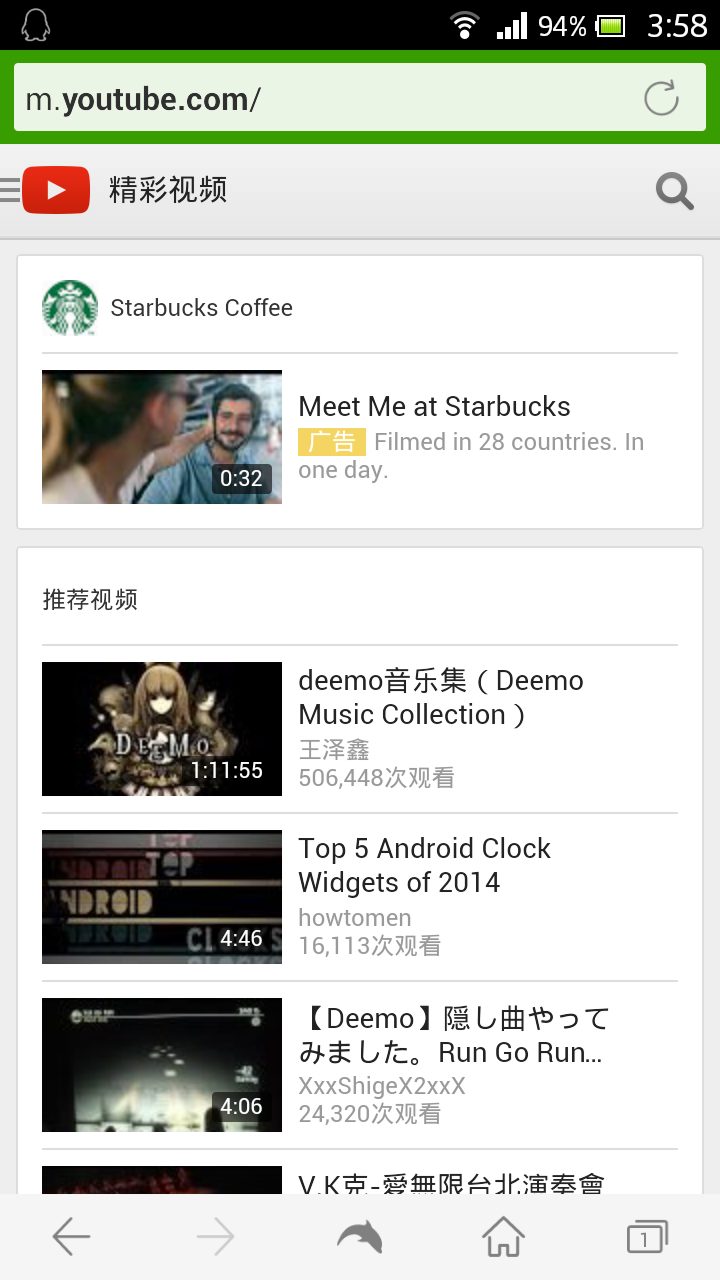
Another Android device can also open YouTube without enabling circumvention software such as Shadowsocks
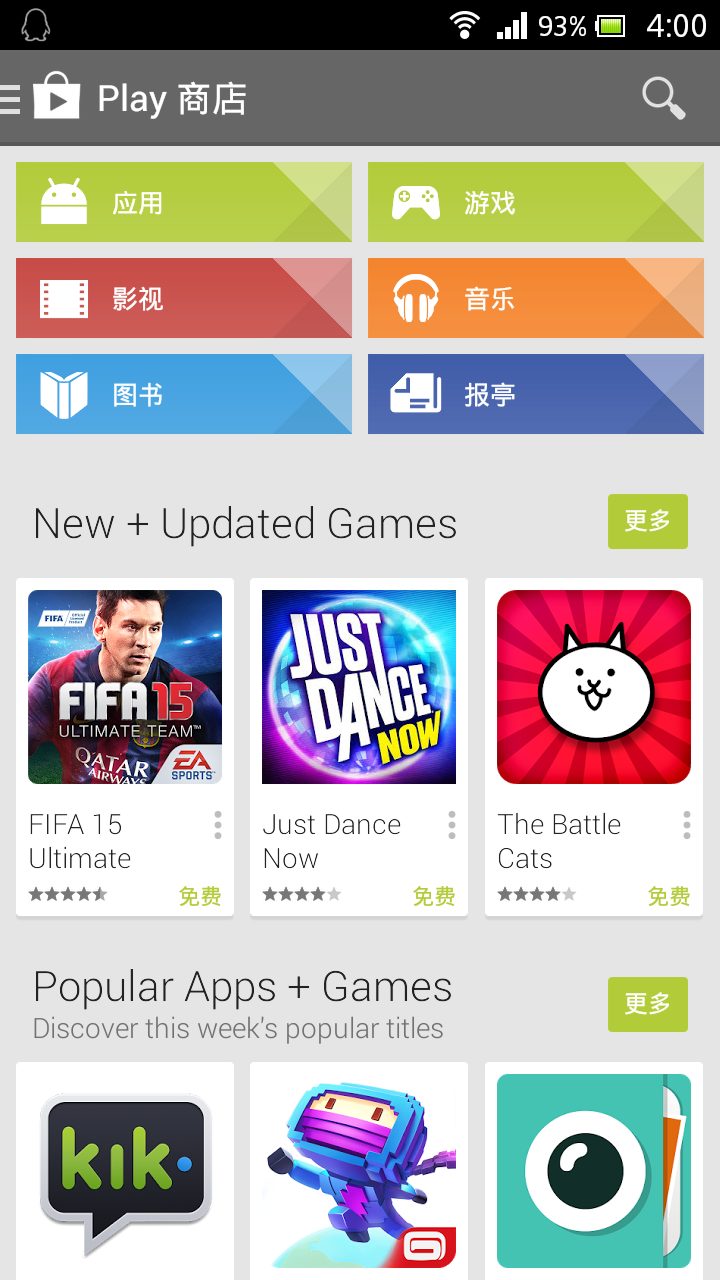
Google Play
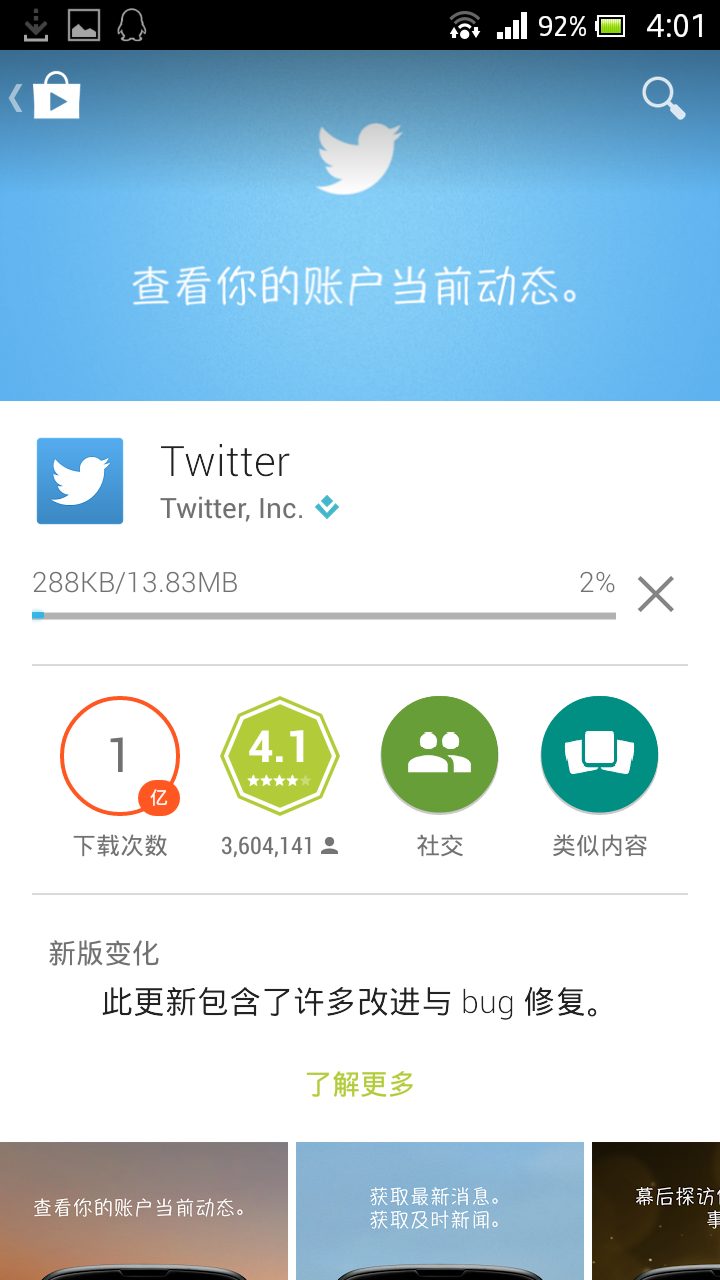

Twitter

Google Plus

Instagram
Great, this truly achieves foolproof circumvention: you only need to enable circumvention on one device, and all other devices can circumvent without installing any extra software or configuring anything.
It should be noted that there is one drawback when accessing from a computer: Chrome cannot access Twitter and Facebook, while other browsers do not have this problem. The reason is still unclear, and I don't know whether it is an isolated case.
2. Setting up services
If you are a web developer, you may want to run various services on an Android device, such as running a PHP web server, running MySQL, etc. We can use existing Android apps to meet this need.
Using Servers Unlimite to run various servers
Servers Unlimite is software developed by an overseas developer. Detailed information can be found on Google Play. Since this app is not free, I will not describe it in detail here. If you want to learn more, please Google it yourself.
Using KSWEB to run PHP+MySQL+Lighttpd
Using KSWEB to run a web server is similar to Servers Unlimite. For a detailed tutorial, please seeSetting up a website server on an Android phone [PHP+MySQL+Lighttpd]
3. Running a Linux virtual machine
Since the Android system kernel is actually also a Linux kernel, running a Linux virtual machine on an Android device is not particularly difficult.
There are many ways to run a Linux virtual machine, but here I will introduce the simplest method with the highest success rate: use Complete linux installer
Complete linux installer is very simple to use. After installation is complete, follow the steps: first download the image of the system you want to install, and then you can start the Linux virtual machine.
After starting, you can choose whether to start VNC and SSH. VNC is rarely used in general, so you can choose not to enable it. Once the Linux system is running successfully, it is equivalent to having a small Linux server. You can use it to install and run various services.
Compile and install Node.js
The CPUs of most Android devices are based on the ARM architecture. Fortunately, the Node.js development team supported the ARM architecture as early as v0.11.3. So we do not need to worry about being unable to compile it.
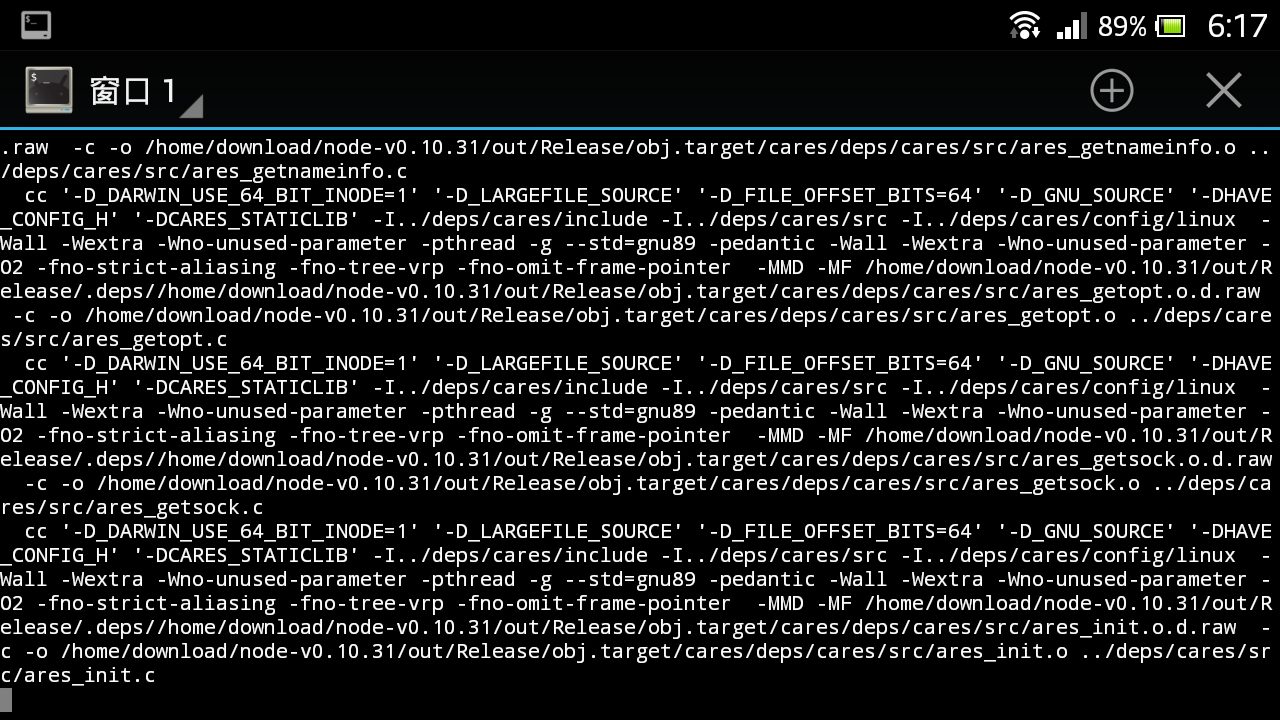
Note that because the CPU performance of Android devices is generally poor, compiling Node.js takes a very long time, so you need to wait patiently. Also, I tested it myself and was able to successfully compile Node.js v0.25; the latest version could not be compiled successfully. Readers are advised to test it themselves.
Before compiling, there is one thing to note: when compiling, you need to pass several parameters to ensure successful compilation. The specific steps are:
- Download Node.js to the Linux virtual machine.
- Extract the Node.js installation package.
- Install the compiler and other dependencies:
apt-get install openssl build-essential python libssl-dev git-core - Start compiling and installing:
./configure --without-snapshot --dest-cpu=arm --dest-os=linux make make install - Compilation complete. Enter:
node -v
If the correct version number is displayed, it means Node.js was installed successfully. The above process takes about three hours. So you need to wait patiently.
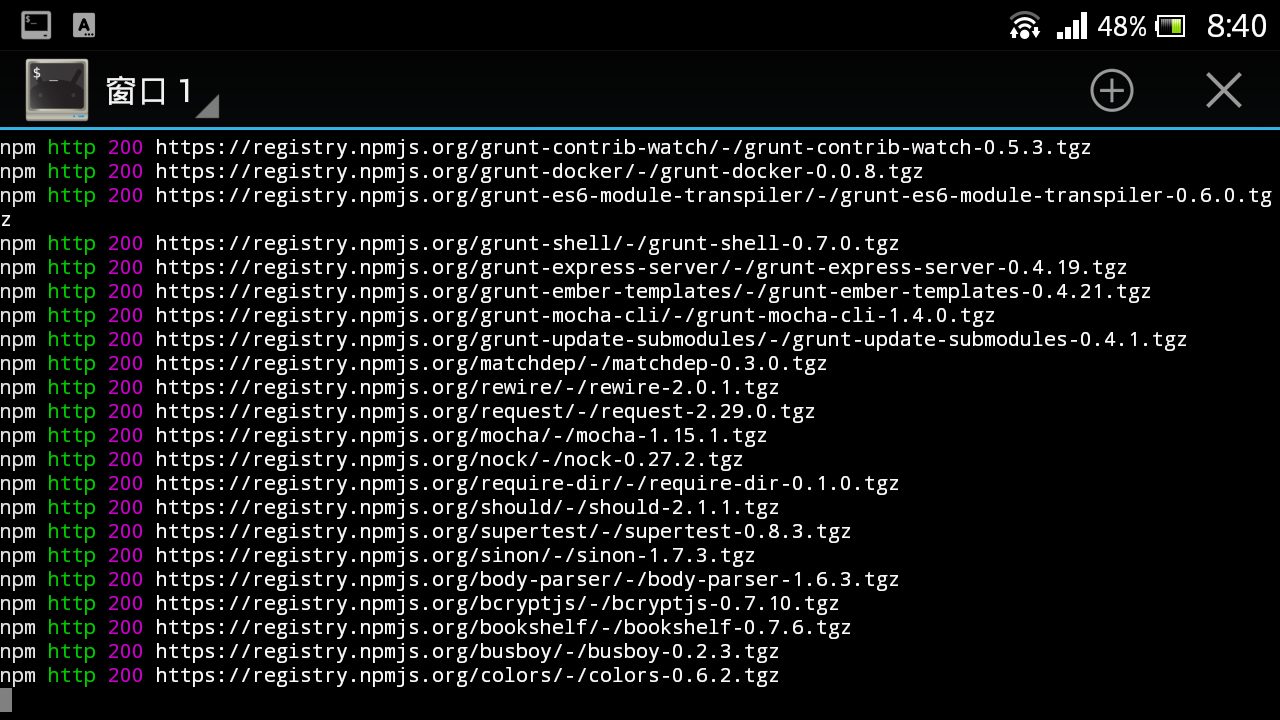
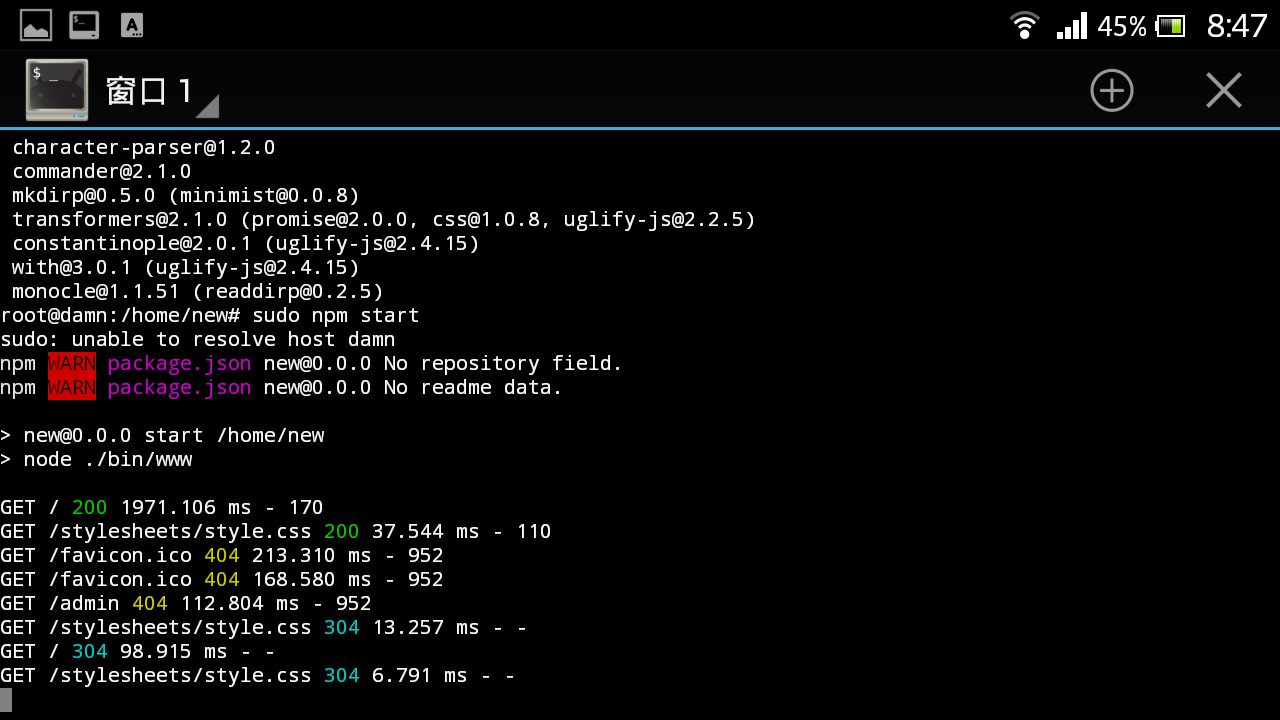
Once Node.js is installed, you can test whether you can run some Node.js programs. Below are screenshots of my phone installing and running a Node.js program:
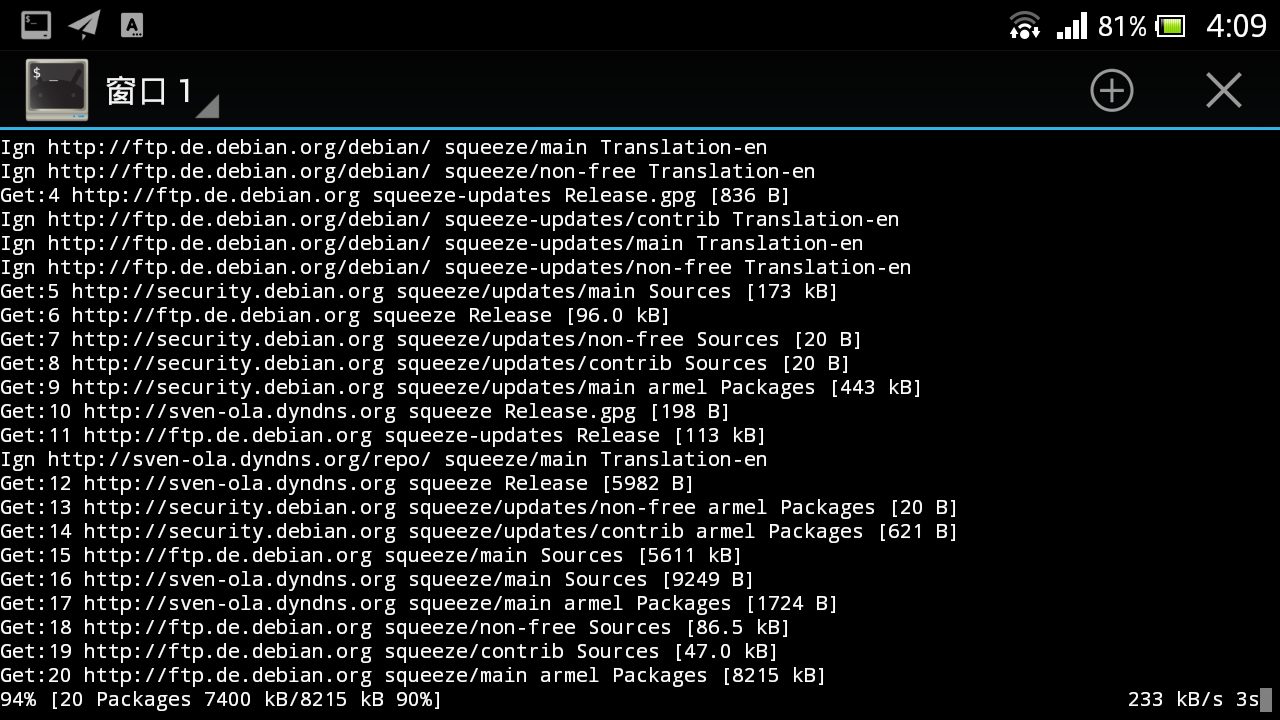
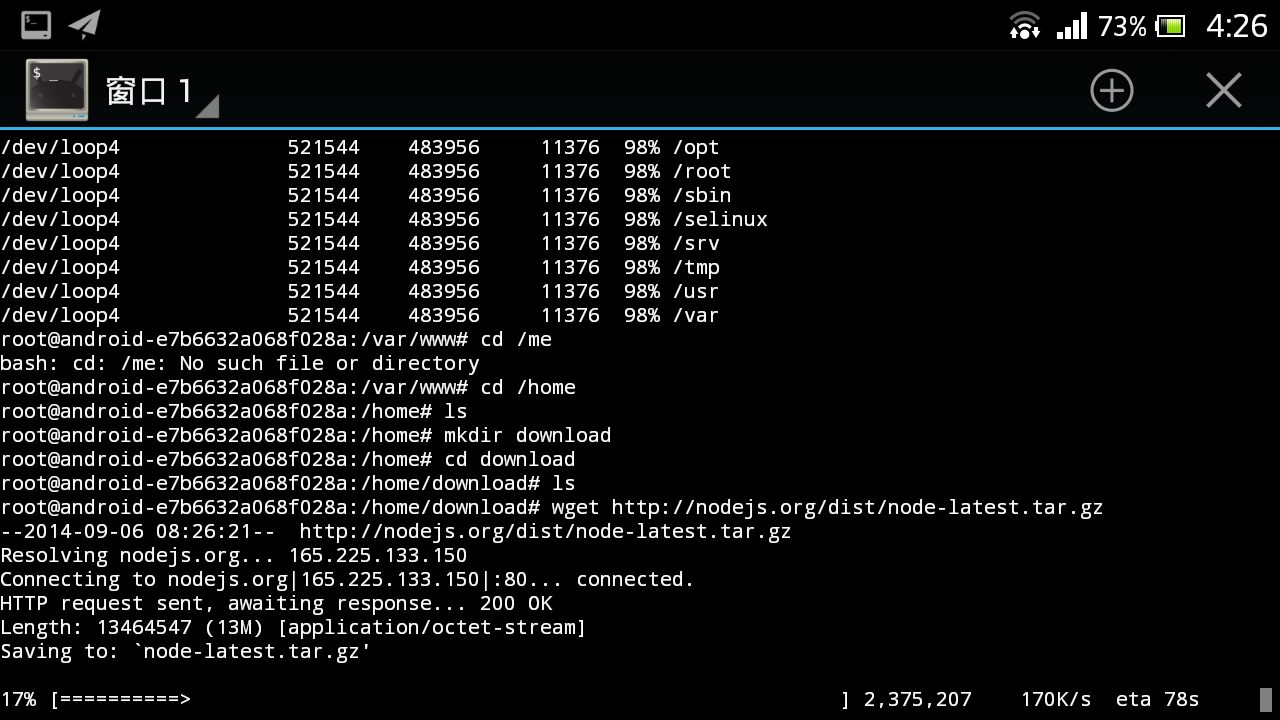
At this point, you can also start tinkering with running other programs on the Linux virtual machine. For example, MongoDB.
For related tutorials, you can refer to:
Install Shadowsocks and cow to bypass the firewall
If you just want to bypass the firewall, there is no need to use a virtual machine. Because you can use fqrouter2 for painless and perfect firewall bypassing. Bypassing the firewall here is just to provide an idea for reference.
Now that we have successfully run the Linux virtual machine, installing shadowsocks and such is a piece of cake.
apt-get install python-pip python-m2crypto
pip install shadowsocks
When done, create a JSON file, configure the configuration file, and then execute
sslocal and that's it. But at this point we can only bypass the firewall inside the virtual machine, and we want to share this firewall-bypassing network with other devices.At this point, you can use cow / polipo for conversion. Shadowsocks is a socks5 proxy, and we need to convert it to an http proxy, because more devices support http proxies without needing to install additional software.
curl -L git.io/cow | bashJust complete the corresponding installation according to the prompts. Edit
~/.cow/rc , and modify some of the content:#开头的行是注释,会被忽略
# 本地 HTTP 代理地址
# 配置 HTTP 和 HTTPS 代理时请填入该地址
# 或者在自动代理配置中填入 http://127.0.0.1:7777/pac
# 监听 0.0.0.0 ,方便其他设备访问。
listen = http://0.0.0.0:7777
# SOCKS5 二级代理
proxy = socks5://127.0.0.1:1080After that, just start cow in the cow directory.
After configuring it this way, other devices on the same network can access the http proxy and PAC file of this device that can bypass the firewall.
- Configure the HTTP proxy on an Android phone:
设置 -> WLAN -> 长按已连接的WIFI -> 修改网络 -> 显示高级选项 -> 代理设置(手动) -> 填入已翻墙的设备的 IP 以及端口 -> 保存. This way, Android devices can bypass the firewall through the HTTP proxy. - Configure the HTTP proxy on Windows:
打开IE -> 打开 Internet 选项 -> 连接 -> 局域网设置 -> 使用自动配置脚本 -> 填入已翻墙的设备的PAC文件地址 -> 确定This way, Windows can also bypass internet restrictions through an HTTP proxy.
Using an HTTP proxy to bypass internet restrictions has a small drawback: some apps may still be unable to bypass restrictions. For example, Google+ couldn't connect to the network on my phone.
4. As an intranet FTP server
Using an Android device as an FTP server is also quite simple. The simplest way is to download an ES File Explorer。The FTP server created this way actually doesn't perform very well, and the reason comes down to the poor hardware performance of Android devices.
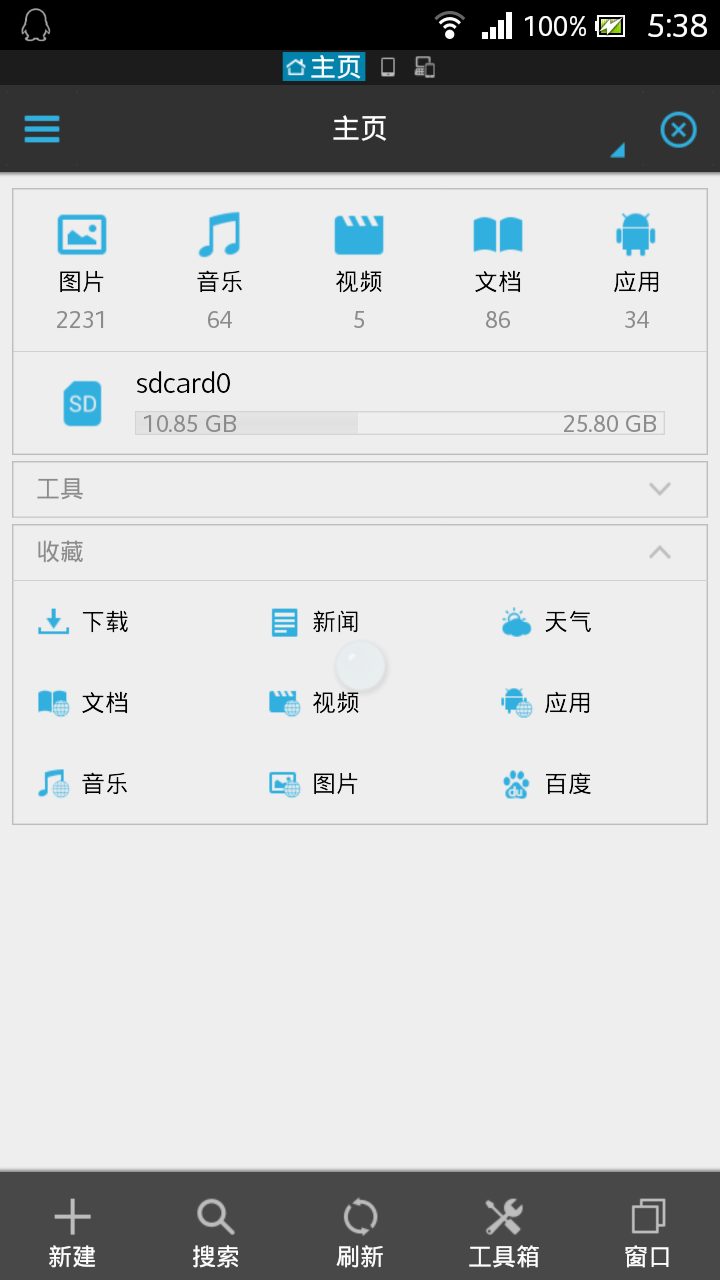
After installation is complete, open the app, and it should look like this.
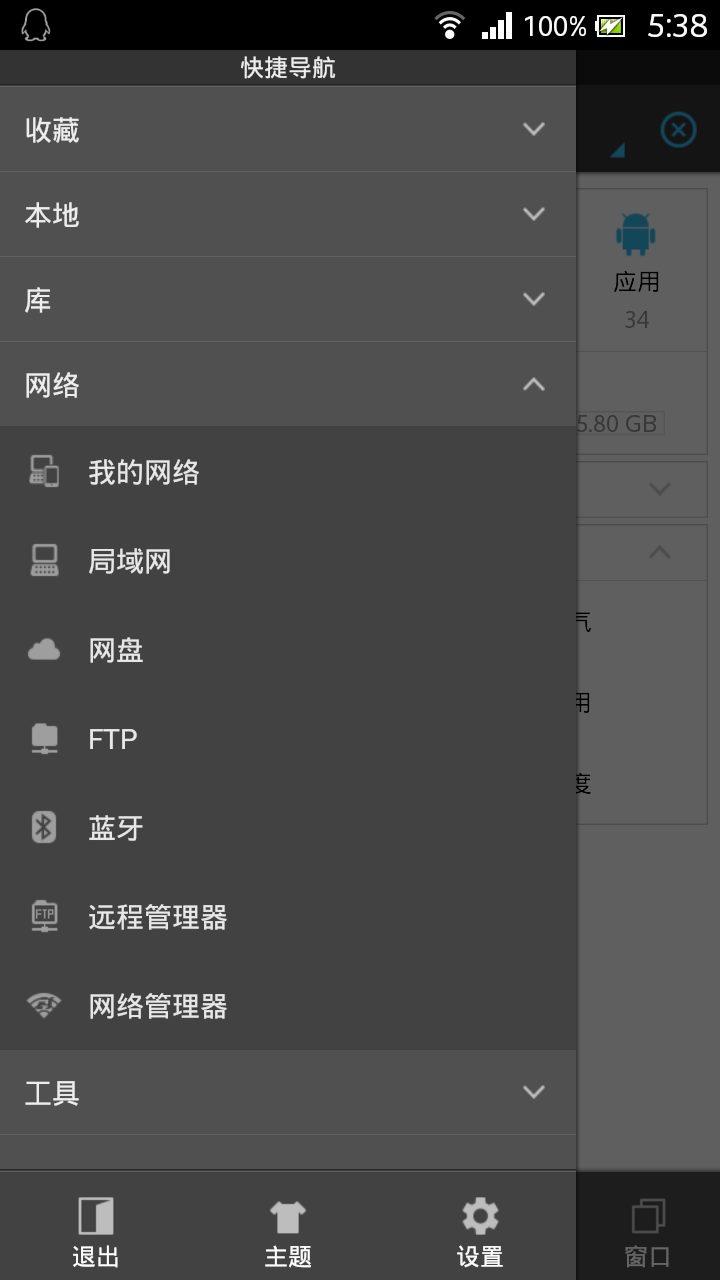
Tap the icon in the upper-left corner to bring up a series of menus. Select the Network option.
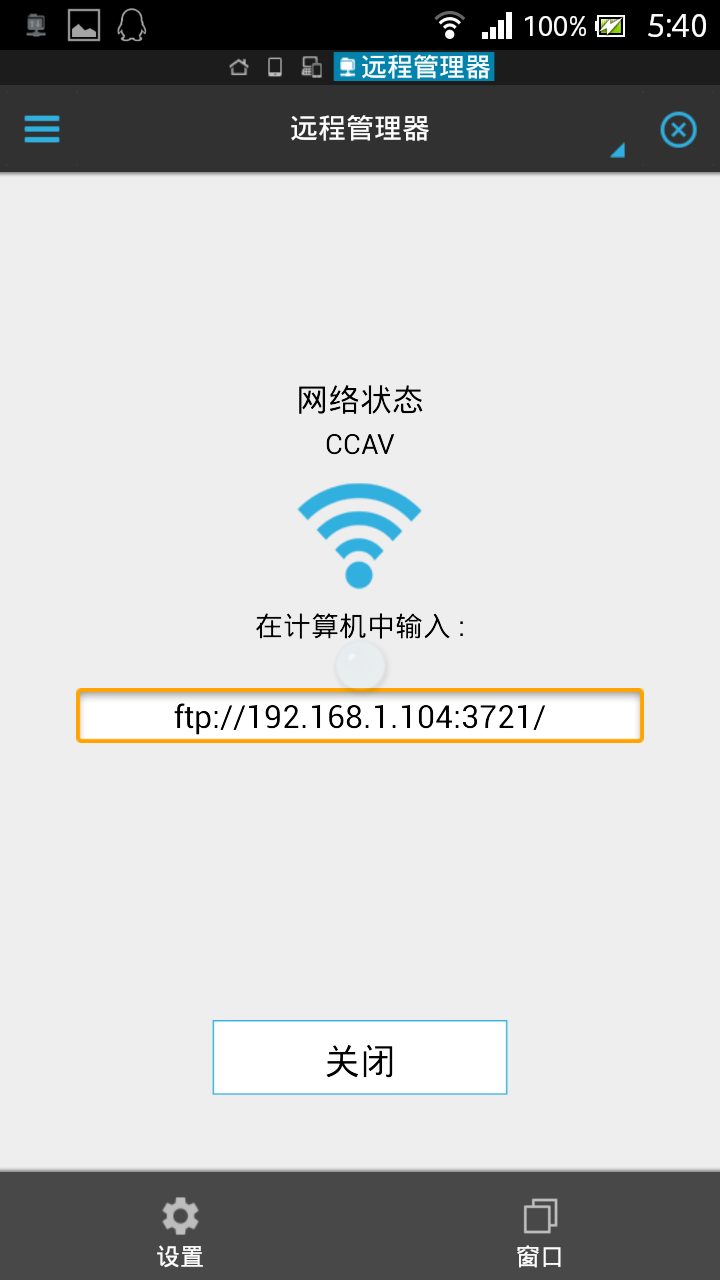
Then select Remote Manager, tap to turn on FTP, and you can then access the device's files through a browser.
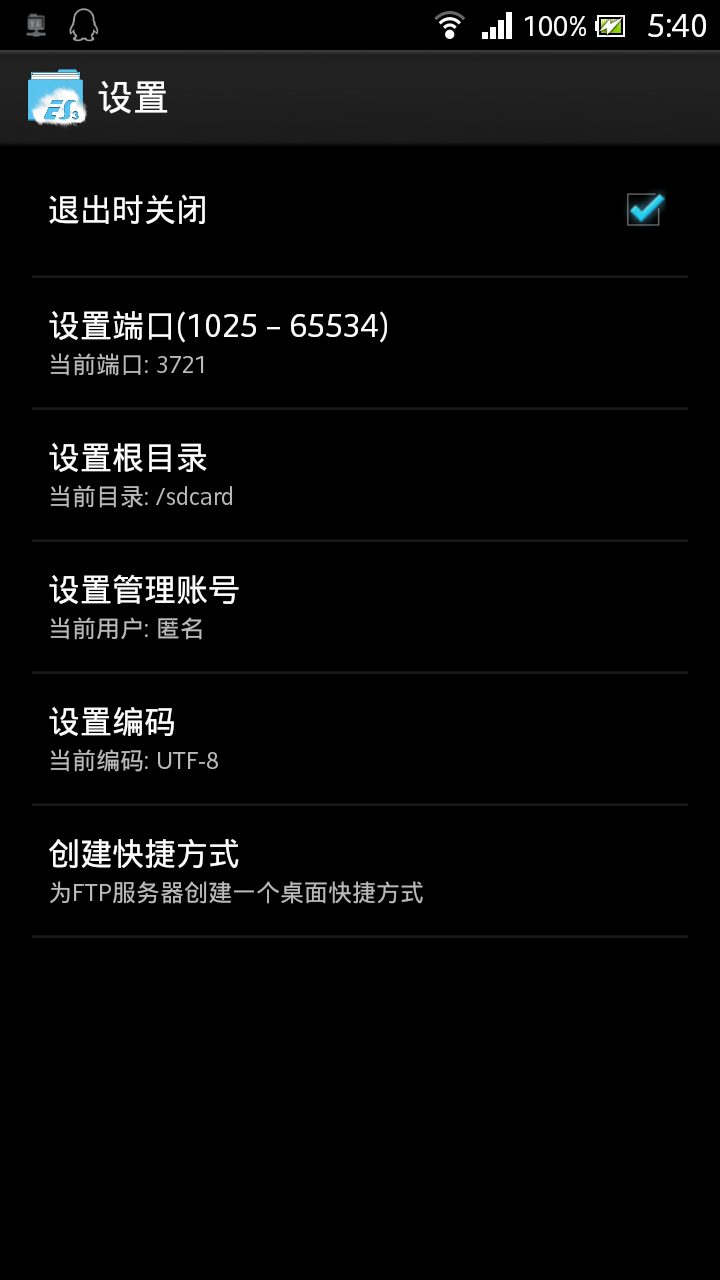
Tap Settings to configure some commonly used settings.
Summary
Using an idle Android device to run some commonly used services is relatively reliable. First, Android devices have low power consumption; even if left running 24 hours a day, they probably won't use much electricity. Second, they don't produce noise. Third, they are small and easy to move. Let's assume that there will be more and more idle electronic devices in the future. How to make some improvements or configurations to these idle devices so that they can continue to serve people can be said to be a field of knowledge, and it also requires people with relatively strong hands-on ability to accomplish. I hope this article has been an inspiration to you.**