

Navigation Interruption and Custom UI in React Router
The article explains how React Router's Prompt and getUserConfirmation can customize navigation confirmation, and explains that they rely on the history library to delay or restore route state, making them applicable only to SPAs.
Background
In my development experience over the past few years, the business I've been responsible for has basically all been mobile pages. Over these years, one increasingly obvious feeling I've had is that product managers nowadays increasingly hope that mobile HTML pages can deliver a user experience similar to that of Native apps. For example, product managers will want the frontend page to be able to directly launch a certain app on the phone—for instance, clicking "Send to a WhatsApp friend" on the page launches the WhatsApp app and enters the interface for selecting a share target, and it also has to automatically carry the shared content. Of course, this kind of scenario can indeed be achieved now, for example by using WhatsApp's private protocol
whatsapp://send to implement it, or on Android phones, one can also use the more standardized intent protocol。But there are also some scenarios that frontend pages truly cannot handle. For example, sometimes product managers also hope that the frontend page can determine whether the current phone has a certain app installed; if it does, launch that app, and if not, directly jump to Google Play or directly download the apk file. As things stand now, frontend pages do not have the ability to query whether the current device has a certain app installed. This is not because developers are incompetent, but because browsers themselves simply do not provide such an API, and we don't have much choice (of course, there are now relatively mature solutions for this scenario, namely trying to launch the target app first, setting a launch timeout, and considering the target app not installed on the current device after the timeout).
Recently I encountered another requirement: the product manager hopes that users can edit certain data within the frontend page, and when the user has modified the page content, if the user clicks another link on the page or presses the phone's back button, the page can pop up a prompt box telling the user that there is currently unsaved content and asking whether they want to leave. This is not the first time I've encountered this requirement, and to be honest, this kind of scenario is indeed quite common. But we mostly experience this kind of interaction in Native apps.
To implement such a feature on the frontend, the first solution that comes to mind is whether we can prevent the default back event, that is, intercept the phone's back button. But unfortunately, there is no such interface. If it were a mobile Native app, handling this kind of thing should be very easy. Of course, that's not to say the browser can't implement such a scenario; in fact, you can listen for the
beforeunload event, as long as you set the beforeunload event is set returnValue , then when the user tries to close the current page, the browser will pop up a prompt.The screenshots below show how this solution appears in desktop browsers and mobile browsers.
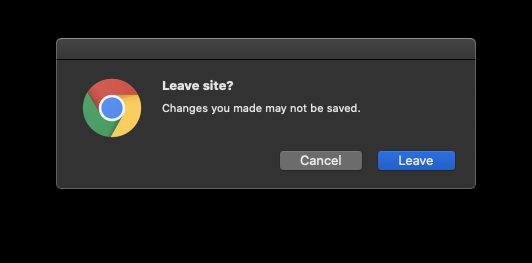
Leave page prompt in desktop Chrome
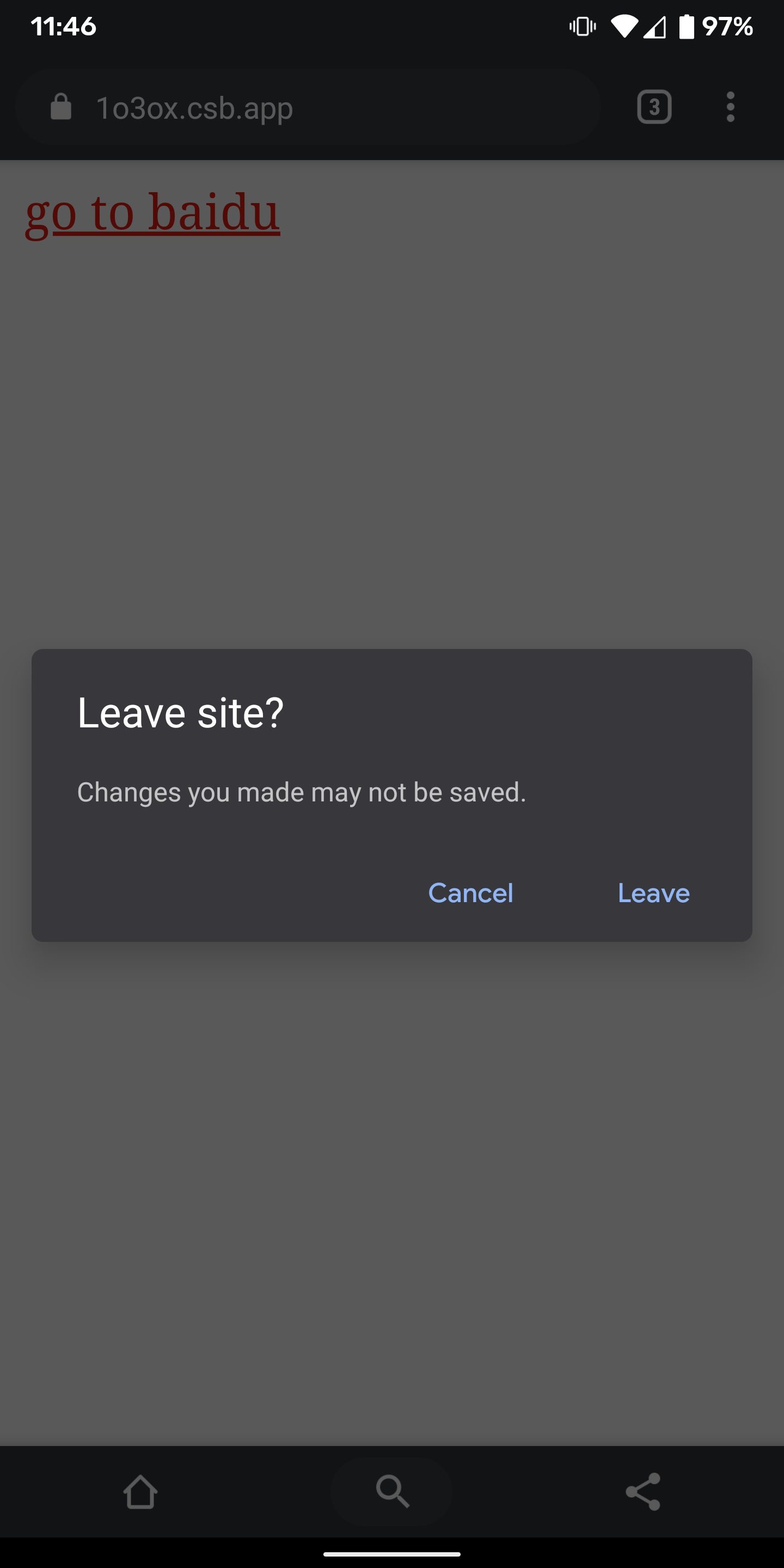
Leave page prompt in Android Chrome
The screenshots above seem to achieve our goal, but there are actually the following two problems:
- Product managers often want the UI of this popup prompt to be customizable. From the screenshots, the browser's default popup can't be called good-looking. But most importantly, the browser's popup prompt currently does not support displaying custom text.
- For single-page applications,
beforeunloadit cannot take effect during frontend route navigation.
So this solution often ends up being rejected in the end. I remember the first time I encountered this kind of requirement, it was dropped at the time due to technical implementation reasons.
This time, I took some time to research it a bit, and found that React Router actually supports such a feature!
React Router's <Prompt />
In the official React Router documentation, there is a demo:Preventing transition. In the official React Router documentation there is a demo called Preventing transition, which mentions using a component to implement a prompt for page navigation. The core code is as follows:, which mentions using
<Prompt /> a component to implement a prompt for page navigation. The core code is as follows:<Prompt
when={isBlocking}
message={location =>
`Are you sure you want to go to ${location.pathname}`
}
/>When
isBlocking is true , navigating to another page or pressing the back button will trigger a popup to be displayed, and the prompt text will be message the content of.By default, React Router's popup prompt uses
window.confirm to implement this, but after some research I found that it supports user-rendered custom UI; you just need to set it in the Router getUserConfirmation . Taking BrowserRouter as an example, the specific implementation can be seen in the following code:import React, { useState } from "react";
import ReactDOM from "react-dom";
import {
BrowserRouter as Router,
Route,
Switch,
Link,
Prompt
} from "react-router-dom";
function Home() {
const [value, setValue] = useState("");
return (
<div>
<Prompt when={!!value} message="are you sure?" />
<input value={value} onChange={e => setValue(e.target.value)} />
</div>
);
}
function About() {
return <div>About</div>;
}
function Nav() {
return (
<div>
<Link to="/">home</Link>
<Link to="/about">About</Link>
</div>
);
}
function getUserConfirmation(message, callback) {
const el = document.querySelector("#confirm");
function decide(result) {
callback(result);
ReactDOM.unmountComponentAtNode(el);
}
function ConfirmModal() {
return (
<div>
<p>{message}</p>
<button onClick={() => decide(false)}>cancel</button>
<button onClick={() => decide(true)}>ok</button>
</div>
);
}
ReactDOM.render(<ConfirmModal />, el);
}
export default function App() {
return (
<div className="App">
<Router getUserConfirmation={getUserConfirmation}>
<Nav />
<Switch>
<Route path="/" exact>
<Home />
</Route>
<Route path="/about">
<About />
</Route>
</Switch>
</Router>
</div>
);
}In this demo, if the user enters content in the input box on the Home page, then whether they click the link at the top or press the browser's back button, the page will first display the confirmation popup we drew ourselves. Only after the user clicks "OK" will the page actually navigate; otherwise, the page will remain on the current page. This perfectly achieves the effect the product manager wanted.
I want to mention once again an advantage of this approach: the interruption of page navigation is asynchronous! Whether the page should stay on the current page or go to or return to another page is only decided when
getuserConfirmation inside callback is executed. So there are many interesting things you can do here, for example, requesting the data needed to render the popup before displaying the confirmation dialog.Although the above demo can perfectly achieve the effect the product manager wanted, it has a drawback: this popup is global. No matter which page needs to interrupt navigation, it can only use the same popup, just with different text.
So can React Router's feature be further encapsulated to render different popups on demand? The answer is of course yes. Before I was about to build my own wheel, I searched and found that there are indeed similar libraries that can achieve more flexible configuration, such as this @allpro/react-router-pause . Interested readers can research it on their own.
Behind the Magic
Now that the solution was found, the problem was essentially solved. But I was very curious about how React Router does it. If it were just intercepting clicks on page links, I could understand that, but how does it intercept the browser's back button, or the phone's back button? Is there some mysterious API that can, like
onClick events, take the back event and preventDefault cancel it?To get the answer, I studied and learned more deeply about how it works. After a series of source code readings, I finally figured out how it works. It turns out that all of this is closely related to the browser's history API.
The history API mentioned above actually refers to two aspects of the history API: on the one hand, it refers to the history API in the HTML5 specification; on the other hand, it refers to the npm package that React Router depends on at its core history 's API.
The browser's native history object should be familiar to everyone; it has
pushState,replaceState and other methods. Calling these methods can change the page's current URL,but the browser will not actually load the content of the changed URL. In other words, calling these methods actually only changes some internal state of history. And the browser will pushState The URL changes are recorded in the history, so you can change the page URL using the browser's forward and back buttons. Likewise, at this point the browser's forward and back actions only change the URL address and do not actually load the content of the URL. At the same time, when the user navigates forward or back through pages, the browser also fires an onpopstate event to inform the page that a page switch has just occurred. There is a very important point to know here: when you manipulate the page URL through the browser's history API, the page's URL is not directly associated with the page content. If you simply change the page URL via pushState without doing anything else, the content displayed on the page remains the original content and will not change in any way.The history library that React Router depends on is based on the browser's history API at its core, except that it wraps the history API. In the native history API, if you manually perform
pushState or replaceState , it will not fire onpopstate event. In other words, when switching pages through code, no event callbacks will be triggered. Only when the browser's back or forward button is pressed will the event callbacks be triggered. In the history library, if you call history.listen method to listen for page URL changes, and only use the push 、replace method it provides to switch pages, then whether the page is switched through code or by clicking the browser's back or forward button, it can trigger the event callbacks. The history library internally maintains its own internal URL state, whether it is a code call push 、replace , or the browser triggers a onpopstate event, it will change its internal URL state. And once the state changes, it will trigger history.listen callback function.React Router implements front-end routing in exactly this way. During the initialization phase of the Router component, it sets up a listener on history and stores the current URL state via React Context. When the page URL changes, the listener callback is triggered, which then updates the state in React Context. Components like Route, on the other hand, directly read the URL state from Context and use it to determine whether the current URL matches their own path at that moment; if it matches, the content of the current Route is rendered. If it does not match, null is returned. The Link component provided by React Router also directly calls the history library's API under the hood to implement front-end route navigation.
The above is how React Router works. Simply put, React Router uses the history library's
listen callback to set the content to be displayed on the current page. The key then lies in whether the URL state inside the history library has changed. If the state has changed, it will naturally trigger a rerender of React Router. And what we referred to this time as using the <Prompt /> component to block page navigation is essentially just delaying the change of the state inside the history library.Inside the history library, every time the URL changes, whether triggered by code
pushState or replaceStateor triggered by the browser's back or forward onpopstate event, it calls the internal transitionManager.confirmTransitionTo to determine whether a state change is actually needed at this point. Inside this method, it checks whether the current private prompt variable is empty; if so, it means no interruption is needed and the state is changed directly. Otherwise, it first displays the prompt set by the user and provides a result callback, letting the user decide whether to switch to the new page. If the user chooses yes, then just like above, the history state is changed directly. If the user chooses no, there are two cases: if the user triggered it by clicking another link on the page, for example by clicking a React Router <Link /> tag, then the history library will directly ignore this state change and will not call the browser history's pushState. The other case is when the user clicks the browser's forward or back button; since we cannot intercept the browser's back or forward action,at this point the page URL has already changed, but inside history its state has not changed, so it will try to restore the current page URL to the previous page's URL, so that the resulting effect is that even if the user clicks the browser's back button, if the user has not confirmed that they want to switch pages, the page still stays on the previous page and the URL remains the original address.So what is the private prompt variable mentioned above? It is actually related to the
<Prompt /> component we use. When <Prompt /> component's when property is true, at this point during the onMount phase it will call the history library's history.block method, and inside this method it sets a new value for the history library's private prompt variable. Therefore, at this point, whenever the page is switched, the change of history's internal state will be interrupted, letting the user make a choice, and the state will not change until the user has made a choice; as a result, the page navigation is interrupted.Taking the demo code above as an example, the specific process can roughly be divided into these steps:
- During the React Router initialization phase, the history library's listener is set up
- During the initial phase, as well as when the history listener callback is triggered, React Router sets the internal Context values, causing child components that depend on these Context values to re-render.
- We used in the page
<Prompt />component, so that the private prompt variable inside the history library is not empty - When we enter content on the Home page and click a link to another page, or click the browser's back button, the history library's internal
transitionManagerreceives the request to switch pages, and executes thetransitionManager.confirmTransitionTomethod to determine whether the page can be switched - Inside the
confirmTransitionTomethod, if it determines that prompt is not empty, then it will call thegetUserConfirmationmethod - The
getUserConfirmationwe passed in will render a confirmation dialog in the DOM, so the page will display a confirmation dialog, and if the user does not take further action, the page will not change - When the user clicks OK or Cancel, it will call the
getUserConfirmationcallback and pass in the result getUserConfirmationcallback is actually thetransitionManager.confirmTransitionToanonymous function passed in, and when this function receives the result, it then determines based on the result whether to update the history state- If the state is updated, then it triggers the
history.listenlistener callback; if there is no update, it does not trigger it, and attempts to restore the current page URL to the previous URL history.listenAfter the callback is triggered, it also triggers React Router's state update, which in turn causes its child components to update, such as the Route component, and at this point the page switch occurs
If you still cannot understand the process above, then the best way to answer this question is to look at the source code:
Summary
After clarifying how React Router works, my previous confusion was also cleared up. It turns out there is no mysterious API that can prevent the browser's back and forward events; it's just that the browser's back and forward events have no direct relationship with the display of page content. Rather, React Router combines the two. In this, the history library serves as a bridge between them: it is responsible for helping us listen for changes to the page URL, while also giving us the ability to manually intervene in page transitions.
I have to say that this approach is indeed very clever, elegantly implemented, and the final result is very ideal.
Of course, it must be said that this approach also has limitations, namely that it can only be used in SPA applications. Traditional navigation between web pages cannot achieve this kind of functionality. Moreover, this approach is not suitable for when the user directly closes the page or refreshes the page. To handle this part of the operation, you still have to rely on intercepting
beforeunload events.热门文章
-
Nine Years of Bookkeeping: Changes in Tools, Methods, and Mindset
-
Fast and Slow
-
Using PVE to Run a Clash Bypass Router Virtual Machine for Transparent Proxying
-
Page Load Performance Optimization Solutions
-
Prismira: Two and a Half Years of Iteration and Growth
-
Hand-sized Mini PC Yunxuan H170 Usage Experience and Homelab Setup