

The Impact of Different Script Loading Methods on the DOMContentLoaded Event and the Load Event
The Impact of Different Script Loading Methods on the DOMContentLoaded Event and the Load Event
<script> tag loads normally
<!DOCTYPE html>
<html>
<head>
  <title></title>
  <script src="https://code.jquery.com/jquery-3.4.1.min.js"></script>
</head>
<body>
  <div>body</div>
</body>
</html>
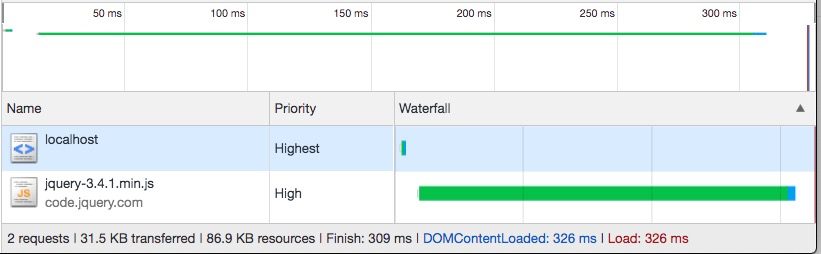
Result:
- Blocks the DOMContentLoaded event
- Blocks the Load event
<script async> tag loads asynchronously
<!DOCTYPE html>
<html>
<head>
  <title></title>
  <script src="https://code.jquery.com/jquery-3.4.1.min.js" async></script>
</head>
<body>
  <div>body</div>
</body>
</html>
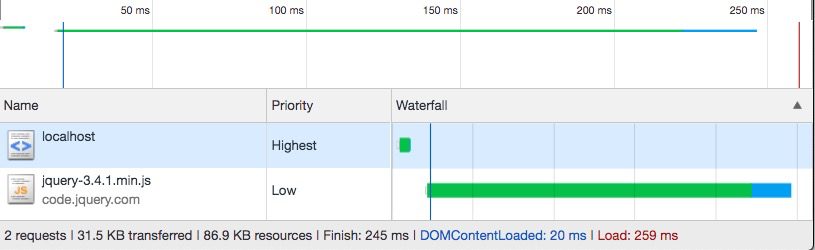
Result:
- Does not block the DOMContentLoaded event
- Blocks the Load event
<script defer> tag loads with deferral
<!DOCTYPE html>
<html>
<head>
  <title></title>
  <script src="https://code.jquery.com/jquery-3.4.1.min.js" defer></script>
</head>
<body>
  <div>body</div>
</body>
</html>
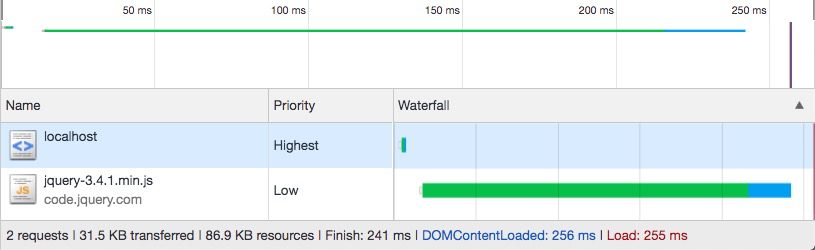
Result:
- Blocks the DOMContentLoaded event
- Blocks the Load event
<script async defer> asynchronous and deferred loading combined
<!DOCTYPE html>
<html>
<head>
  <title></title>
  <script src="https://code.jquery.com/jquery-3.4.1.min.js" defer async></script>
</head>
<body>
  <div>body</div>
</body>
</html>
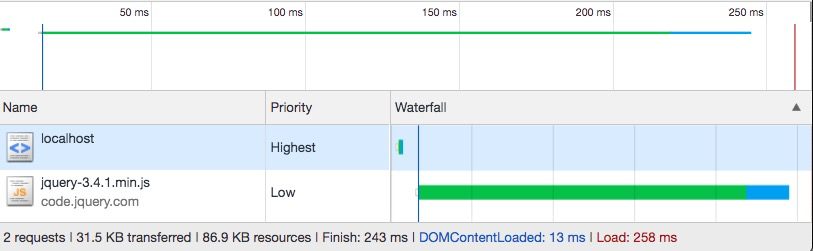
Result:
- Does not block the DOMContentLoaded event
- Blocks the Load event
<link rel="preload"> combined with the onload event
<!DOCTYPE html>
<html>
<head>
  <title></title>
  <link rel="preload" as="script" href="https://code.jquery.com/jquery-3.4.1.min.js" onload="load(this)" />
</head>
<body>
  <script>
    function load(link) {
      var script = document.createElement('script');
      script.src = link.href;
      document.body.appendChild(script);
      script.onload = function() {
        console.log('dynamic script loaded');
      }
    }
  </script>
  <div>body</div>
</body>
</html>
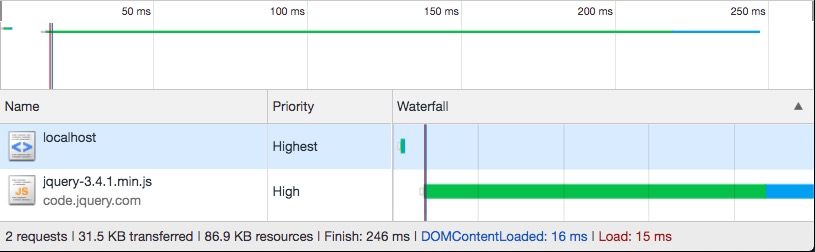
Result:
- Does not block the DOMContentLoaded event
- Does not block the Load event
<link rel="preload"> combined with the DOMContentLoaded event
<!DOCTYPE html>
<html>
<head>
  <title></title>
  <link rel="preload" as="script" href="https://code.jquery.com/jquery-3.4.1.min.js" />
</head>
<body>
  <script>
    function load() {
      var script = document.createElement('script');
      script.src = 'https://code.jquery.com/jquery-3.4.1.min.js';
      document.body.appendChild(script);
      script.onload = function() {
        console.log('dynamic script loaded');
      }
    }
    window.addEventListener('DOMContentLoaded', function() {
      load();
    });
  </script>
  <div>body</div>
</body>
</html>
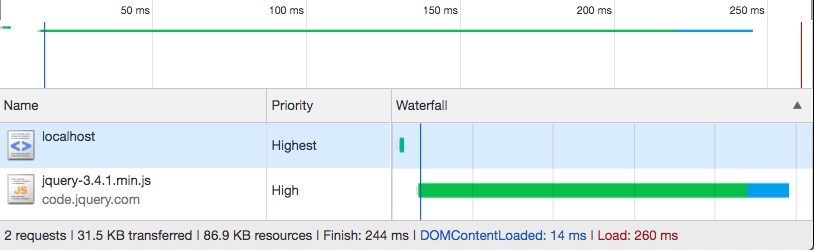
Result:
- Does not block the DOMContentLoaded event
- Blocks the Load event
Principle Analysis
Before analyzing the principles, let's first look at the definitions of DOMContentLoaded and Load:
- DOMContentLoaded: This event is triggered when the page's HTML has been downloaded and parsed. At this point, resources such as CSS and images may not have finished loading yet.
- Load: This event is triggered when all dependent resources of the page have finished loading.
Loading of a regular <script> tag
When the browser is downloading and parsing HTML content, if it encounters a regular <script> tag, it will immediately download this script resource and execute it right away. At this point, the browser pauses further parsing of the HTML page. Therefore, a regular <script> tag directly blocks the DOMContentLoaded and Load events.
<script async>
According to MDN's documentation, <script async> tells the browser to load this script asynchronously as much as possible. Asynchronous loading means that the downloading and parsing of the page's HTML will not be affected, so when the browser parses HTML content and encounters a <script async> script, it will immediately download this script, but at the same time it will continue parsing the remaining HTML content. If the browser finishes parsing the entire HTML content, the DOMContentLoaded event will be triggered. When this event is triggered, the <script async> script may not have finished loading; in the example above, you can see that the async script finished loading only after the DOMContentLoaded event was triggered. In other words, the loading of an async script does not affect the DOMContentLoaded event.
However, because <script async> is essentially a resource that HTML depends on, according to the definition of the Load event, the Load event is only triggered after all resources have finished loading, including <script async> resources. This therefore explains why <script async> affects the triggering of the Load event.
Another small piece of knowledge: <script> scripts dynamically created with JS are loaded in async mode by default.
<script defer>
By definition, <script defer> tells the browser to immediately download the resource when it parses the defer script, but at this point it still continues parsing the remaining HTML content. However, unlike async, the execution timing of a defer script is after domInteractive and before domContentLoaded. So, even if the page's HTML content has already been parsed, if the defer script has not yet been downloaded and parsed at this point, the browser will not trigger the DOMContentLoaded event; only after the defer scripts have all finished downloading and executing will the DOMContentLoaded event be triggered. Therefore, defer scripts affect the timing of the DOMContentLoaded event, and in turn affect the timing of the Load event.
<script defer async>
If both the defer and async attributes are configured for a script resource, and the browser supports the async attribute, then async takes precedence over defer, and its behavior is the same as that of an async script. If the browser does not support the async attribute, it will simply ignore this attribute, and its behavior will be the same as that of a defer script.
<link rel="preload">
Preload, as the name suggests, is essentially used to preload resources. One of its characteristics is that preloading a resource does not affect the Load event. This explains why using Preload to load resources does not delay the triggering of the DOMContentLoaded and Load events.
Of course, using only <link rel="preload"> cannot achieve our goal. Preload only helps us download the resource, but it does not execute it. Fortunately, it supports the onload event. In this way, together with the onload event, we can write code to manually construct a <script> request to actually load this resource. Since the resource has already been preloaded with preload, the manually constructed <script> tag will not actually issue another request, but will directly use the cached result (an interesting thing is that even if you enable Disable Cache in the Network panel of the Chrome console, the resource request after preload will still be taken directly from the cache rather than making a new request. This is fundamentally different from Prefetch).
So at this point, we have effectively implemented a resource loading solution that does not affect the triggering timing of the DOMContentLoaded and Load events.
But in the last example above, if we manually create a <script> tag to load it right at DOMContentLoaded, even though there is a preload at this point, the end result is still that it affects the Load event. This is because a <script> tag created with a script will essentially load in an async manner, so it comes back to the <script async> approach. Since it is essentially a dependency of the page, the Load event needs to wait until all dependencies of the page have finished loading before it fires. Therefore, we can see that this approach will in fact also affect the Load event.
Conclusion
If you want to load a certain script resource without affecting the normal loading performance of the current page, the optimal approach is to use the Preload + onload solution. This solution will not affect the page's DOMContentLoaded event or the Load event, so using
window.performance.timing the measured page load performance will be more accurate.However, it is important to note that when using the Preload + onload approach to load a script resource, the timing of when it finishes loading is uncertain. If your business code needs to reference a method or variable exported by this script, then you need to be aware that at the moment your business code executes, the script may not have finished downloading yet.
So if you have very high requirements for code execution order, then the above approaches may not be very suitable. You need to carefully analyze the code execution order involved; otherwise, it may very likely lead to unexpected results. But if you do not care about the code execution order of this resource and simply need to execute it at a certain point in time, then using this approach is undoubtedly optimal. You just need to pay attention to the compatibility issues of preload.
Some classic use cases:
- Asynchronously loading analytics scripts
- Asynchronously load third-party non-essential libraries
Bonus Time
As mentioned above, when the browser parses a regular <script> tag, it stops parsing the subsequent HTML content, waits for the script to finish downloading and executing, and only then continues parsing the subsequent HTML content. But if you look at Chrome's Network panel, you'll find that this is actually not the case:
<!DOCTYPE html>
<html>
<head>
  <title></title>
  <script src="https://code.jquery.com/jquery-3.4.1.min.js"></script>
  <script src="./b.js"></script>
</head>
<body>
  <div>body</div>
</body>
</html>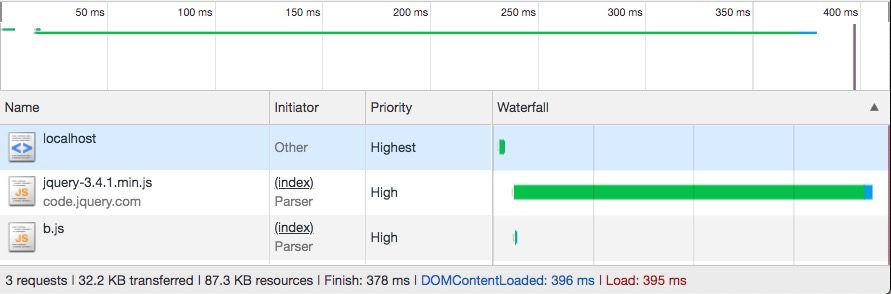
Suppose two <script> tags are declared in the HTML. According to what was said earlier, the browser should first download and execute the jQuery script before downloading and executing the b.js file, but when you look at the Network panel, you find that the jQuery script and the b.js script start downloading almost simultaneously. Why is that?
In fact, this is an optimization made by the browser. The browser has a feature called the preloader, which analyzes the output of HTML during the tokenization phase to determine the resources the HTML may need, as well as the URLs of those resources. The results of HTML lexical analysis are passed directly to the HTML parser for parsing. At the same time, the resource URLs identified by the preloader and the corresponding resource types are also sent to the browser's fetcher, so the browser can download a specific <script> tag in advance before it actually parses it. Generally speaking, resources such as JS files, CSS files, and images referenced by <img> tags are all downloaded in advance.
Back to our example: after the browser finishes downloading the HTML file and performs lexical analysis, it knows that this page references two JS resources, so the browser has already started downloading these two resources when it begins parsing the HTML content, which is why the above figure looks the way it does.
To verify that the resource download timing identified by the preloader is earlier than the HTML parsing timing, we can write a DEMO like this:
<!DOCTYPE html>
<html>
<head>
  <title></title>
  <script>
    var script = document.createElement('script');
    script.src = './a.js';
    document.head.appendChild(script);
  </script>
  <script src="./b.js"></script>
</head>
<body>
  <div>body</div>
</body>
</html>
Since the browser parses HTML from top to bottom, looking at the code above, if we do not consider the Preloader, it should first parse the inline script tag, then immediately create a <script> tag to download the a.js script, and only when it parses <script src="./b.js"> will it download the b.js script.
However, because the Preloader exists, the b.js script download timing will be earlier than that of a.js:
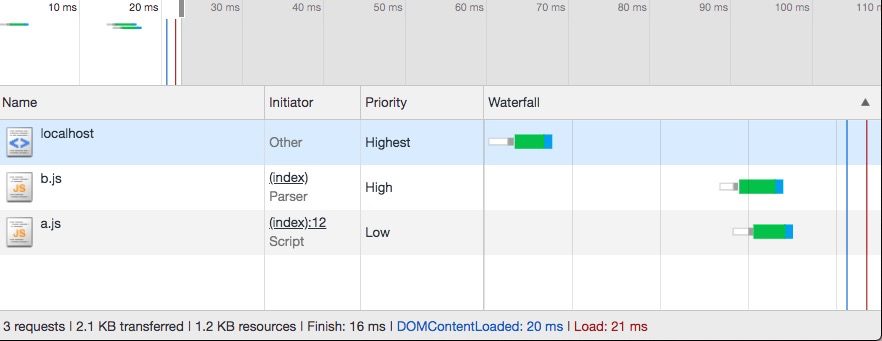
This also shows that the resource download timing identified by the preloader is earlier than the HTML parsing timing.
Reference
热门文章
-
Nine Years of Bookkeeping: Changes in Tools, Methods, and Mindset
-
Fast and Slow
-
Using PVE to Run a Clash Bypass Router Virtual Machine for Transparent Proxying
-
Page Load Performance Optimization Solutions
-
Prismira: Two and a Half Years of Iteration and Growth
-
Hand-sized Mini PC Yunxuan H170 Usage Experience and Homelab Setup